


Insights | Accounting, FreeAgent
How to Send an Invoice in FreeAgent
Below we have provided a step-by-step guide as to how you send your invoice using FreeAgent. We’ve explained every choice and setting so you can confidently choose how to deliver your invoice, verify it has been sent, and understand what happens next.
For a FREE no obligation consultation call us now on 0161 879 7175.

Introduction
FreeAgent makes sending invoices simple and professional, with options to email directly to your client, download as a PDF, or include a secure online payment link so you get paid faster. As your expert FreeAgent Gold accountant in Manchester, we’ve created this guide to walk you through every method so you can choose the best way to deliver your invoice and keep your cash flow healthy.
Before you begin: You’ll need to have created and finalised your invoice first. If you haven’t created it yet, follow our ‘How to Raise an Invoice in FreeAgent guide’. We’ve created these resources to help you every step of the way.
Step by Step Guide
Step 1 — Locate Your Invoice
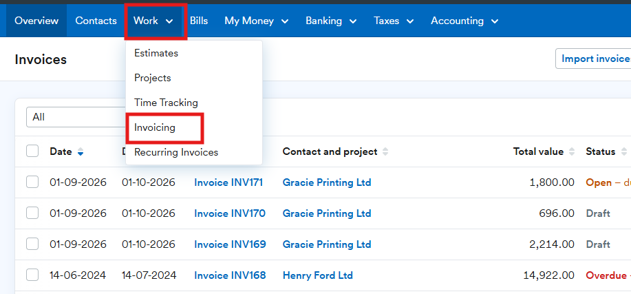
Log in to FreeAgent and navigate to:
Work → Invoicing
You’ll see a list of all your invoices. Find the invoice you wish to send, it will typically show a status of Draft or Ready to Send. Click on the invoice to open it.
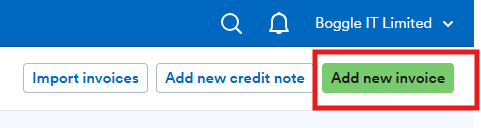
Then click the green Add new Invoice button (top-right corner).
Step 2 — Preview the Invoice
Before sending, take a moment to preview exactly what your customer will receive:
- Check the invoice date, number, and due date
- Verify customer name and address
- Confirm line-item descriptions, quantities, rates, VAT, and totals
Ensure payment instructions / bank details are included
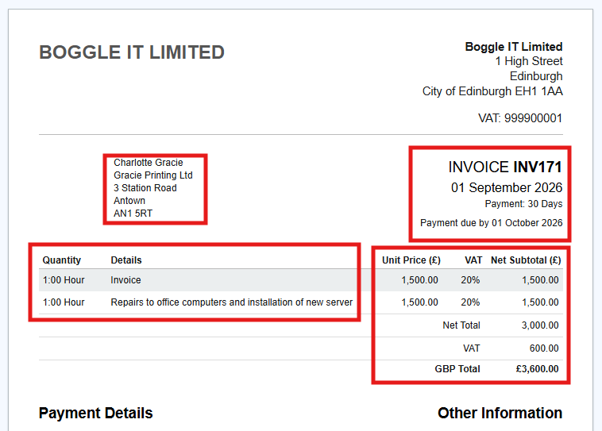
KEY TIP. This is your final check, once sent, invoices should not be edited (issue a Credit Note instead if corrections are needed). See our guide on raising a credit note.
Step 3 — Choose How to Send
You have three main options for delivering your invoice:
Option A.
Send by Email Directly from FreeAgent
This is the fastest and most professional method.
- Scroll down and change items such as Invoice Date, Payment terms and enter any additional text. Please note invoice reference is prepopulated by the software.
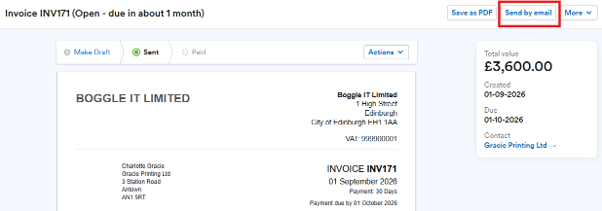
Click Send by Email (top of the invoice screen)
Confirm the recipient email address, this pulls from the Contact record, but you can edit it
Customise the email subject and message if needed, FreeAgent provides a professional default template
Include online payment button? If you’ve set up Stripe, PayPal, or GoCardless, tick the box to add a secure payment link, your customer can pay instantly by card
Click Send Invoice
Your customer receives a clear email with the invoice attached as a PDF, plus a payment button if enabled. The invoice status automatically updates to Sent in FreeAgent.
Option B
Save as PDF to Attach Manually
If you prefer to send from your own email or print a copy:
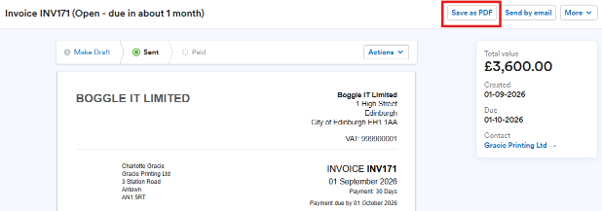
Click Save as PDF on the invoice screen
FreeAgent generates a professional PDF invoice and downloads it to your device
Attach the PDF to your own email and send it
Important: Return to FreeAgent → click Mark as Sent from the Actions menu, this ensures the invoice appears correctly in your accounts and reports
Option C
Share a Payment Link Only
If you want to send just a secure link where your customer can view and pay online:
From the invoice screen, look for the Online Payments panel
Select Share Payment Link
Copy the link and send it to your customer via email, message, or WhatsApp
Your customer clicks through to view the invoice and pay securely by card
Step 4 — Confirm the Invoice Status
Once delivered, your invoice status updates in FreeAgent. Here’s what each status means:
Status Table
| Status | What It Means |
| Draft | Created but not yet sent, still editable |
| Sent | Invoice has been emailed or marked as sent, awaiting payment |
| Viewed | Customer has opened / viewed the invoice |
| Payment Processing | Customer has paid; funds are being processed |
| Paid | Payment received and recorded |
| Overdue | Due date passed, payment not yet received |
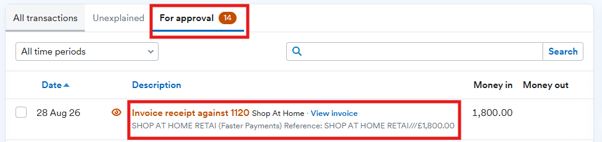
If you’ve connected your bank feed, FreeAgent can automatically match incoming payments to your invoices and mark them as Paid for you.
Step 5 — What Happens Next & Automatic Reminders
Once your invoice is sent:
FreeAgent can automatically chase overdue invoices for you
Set this up in Settings → Email Reminders, choose when and how often to send polite follow-ups
When your customer pays, you’ll receive a confirmation email from FreeAgent
Payments made via Stripe, PayPal, or GoCardless will show a Payment Processing status until funds clear
Sending an Invoice, Mobile App Version
Open the FreeAgent app → tap Invoicing
Tap the invoice you wish to send
Tap Send by Email or Download PDF
Confirm recipient email and edit message if needed
Tap Send Invoice
Quick Checklist Before You Send
Invoice number, date, and due date correct?
Customer details accurate?
All line items, VAT, and totals verified?
Payment instructions / bank details included?
Email address confirmed?
Online payment option enabled (if desired)?
Will you send from FreeAgent or manually as PDF?
Pro Tips from Accounting Solutions Manchester
Always Mark as Sent: If you save as PDF and email manually, remember to Mark as Sent in FreeAgent, otherwise it stays in Draft and won’t appear in your accounts or overdue reports.
Set Email Templates: Customise your default invoice email in Settings → Email Templates so every invoice goes out with your preferred wording automatically.
Enable Online Payments: Invoices get paid up to 17 days faster on average when you include a card payment button. Connect Stripe, PayPal, or GoCardless in Settings → Connections.
Need Help? We’re your FreeAgent Accredited Partner. If you’d like assistance setting up invoice emails, payment links, or automated reminders, get in touch, we’re here to help!
Frequently Asked Questions
Q: Can I edit an invoice after sending it?
A: Best practice is, Draft = editable; Sent = do NOT edit. If you need to correct something after sending, issue a Credit Note for the original and create a corrected new invoice, this keeps your audit trail clean and tax-compliant.
Q: My customer didn’t receive the invoice, what should I do?
A: Check their spam/junk folder first. Return to the invoice → click Send by Email again → verify the email address → re-send. Alternatively, download as PDF and attach manually.
Q: How do I know when the invoice has been paid?
A: The invoice status changes to Paid in FreeAgent. You’ll also receive a confirmation email. If your bank feed is connected, payment matches automatically.
Q: Can I send the invoice to multiple people?
A: Yes, in the email dialogue, separate email addresses with a comma. Set up CC defaults per customer in their Contact record too.
How we Can Help
We have over 20 years of experience in helping clients to reduce tax, increase profit and save time. As fully certified FreeAgent accountants in Manchester, we have undergone dedicated Freeagent training, which means that we are well equipped to help you and your business. Having achieved Gold Partner status with FreeAgent, we have numerous happy clients using FreeAgent.
We provide exceptional accounting services to limited companies, start-ups and sole trader businesses in Manchester and offer a fixed fee service Contact us 0161 879 7175
Related FreeAgent Accounting News & Insights
I’m Jay from Accounting Solutions Manchester. Dive into simple, effective accounting tips for your small business and let’s simplify accounting together!


